
Contents
- Requirements
- Example of creating a Project NPS survey in HubSpot
- Create fields for the deal in HubSpot settings
- Create new fields in Severa as custom project fields
- Create a workflow that sends the survey when the project is closed in Severa
- NPS survey results
- Customer NPS
Requirements
To create satisfaction surveys and property sync fields in HubSpot, you need a Service Hub Professional license.
Example of creating a Project NPS survey in HubSpot
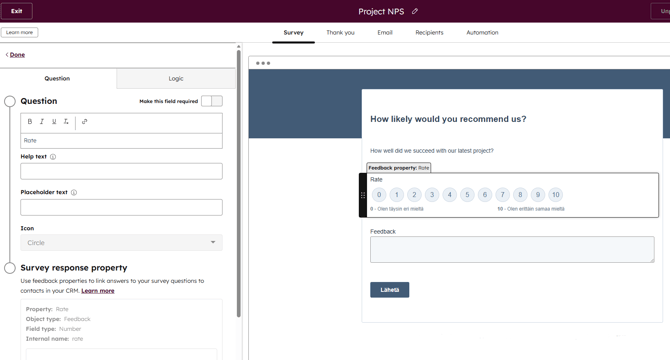
In HubSpot, create a custom survey with the delivery method set to workflow. Add a Rating-type question and choose the scale you want to use. Also add a Multi-line text field for open feedback. Link the Rating and Multi-line text fields to an existing field in the Survey or create new fields for them. In this example, the fields ‘Rate’ and ‘Feedback’ have been created.
Create fields for the deal in HubSpot settings
Note! To ensure the data is synchronized to Severa, the internal name must match exactly as shown below!
Deal fields
| Property label | Internal name | Field type | Choose the associated record type | Choose the associated record property | Choose which Survey response to sync from |
| Project NPS | project_nps_survey | Property sync | Survey response | Kenttä, johon NPS tallentuu, esimerkissä Rate | Most recently created |
| Project NPS feedback | project_nps_feedback_survey | Property sync | Survey response | Kenttä, johon vapaa palaute tallentuu, esimerkissä Feedback | Most recently created |
Create new fields in Severa as custom project fields
In HubSpot, go to Settings > Integrations > Connected apps > Severa.
Select the Settings tab > Data mappings > Deals.
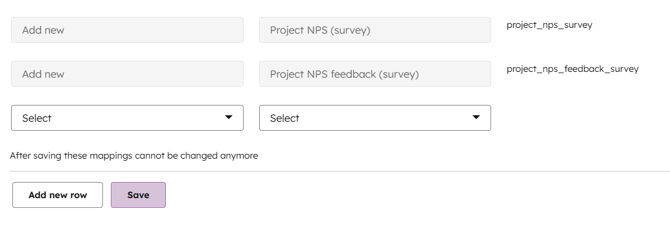
Scroll to the bottom of the page, choose Add new for the Severa field and Project NPS for the HubSpot field.
Click Add new row, then select Add new for the Severa field and Project NPS feedback for the HubSpot field, and save.
Create a workflow that sends the survey when the project is closed in Severa
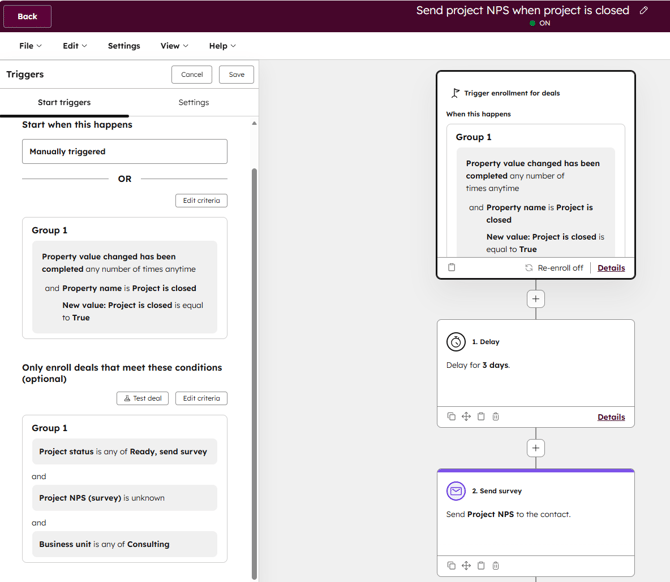
Set the workflow trigger to ‘when a property value changes’.
For the trigger, select the deal property “Project is closed” and set the condition to true. This field is updated to true when the project is closed in Severa.
You can also trigger the workflow based on any other property change that suits your needs.
Add filtering conditions to the trigger to define which projects the survey should be sent to.
In this example, the survey should only be sent once after the project has ended, and the project manager is responsible for indicating in Severa whether the survey may be sent.
For this reason, the example includes only those deals that do not yet have an NPS result, for which the project status in Severa has been set to allow sending the survey, and whose business unit is Consulting.
You can use any deal properties as filter criteria depending on your needs — consider which projects should receive the survey and set the conditions accordingly.
Then add the action Send survey to the workflow, which sends the survey to the deal contact(s).
NPS survey results
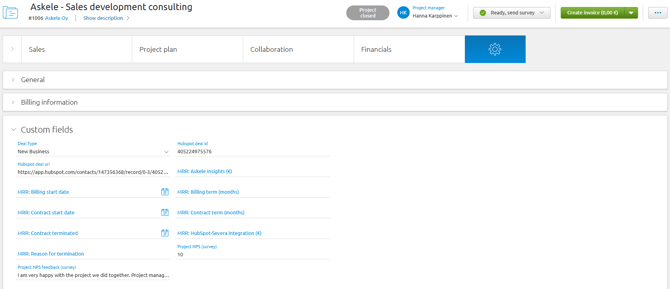
When a contact responds to the survey, the results are visible both in HubSpot and in Severa.
The image below shows an example of a deal overview view filtered to display projects that have been closed in Severa.

The image below shows an example of the Settings tab of a Severa project, where the survey results are displayed in the additional fields.
Customer NPS
If you want to store the results of the NPS survey at the customer level, you can do so by creating the fields below for the Company object in HubSpot settings.
The internal name must match exactly as shown below for the data to synchronize to Severa.
Company fields
| Property label | Internal name | Field type | Choose the associated record type | Choose the associated record property | Choose which Survey response to sync from |
| NPS | customer_nps_survey | Property sync | Survey response | Kenttä, johon NPS tallentuu, esimerkissä Rate | Most recently created |
| NPS feedback | customer_nps_feedback_survey | Property sync | Survey response | Kenttä, johon vapaa palaute tallentuu, esimerkissä Feedback | Most recently created |
Create new fields in Severa as customer custom fields via the Data mappings page in the integration.
In HubSpot, go to Settings > Integrations > Connected apps > Severa.
Select the Settings tab > Data mappings > Companies.
Scroll to the bottom of the page, select Add new for the Severa field and NPS for the HubSpot field.
Click Add new row, then select Add new for the Severa field and NPS feedback for the HubSpot field, and save.
Create the survey you want and trigger it with an automation that sends it to the company’s contact(s), for example once a year.